Export Collected Data
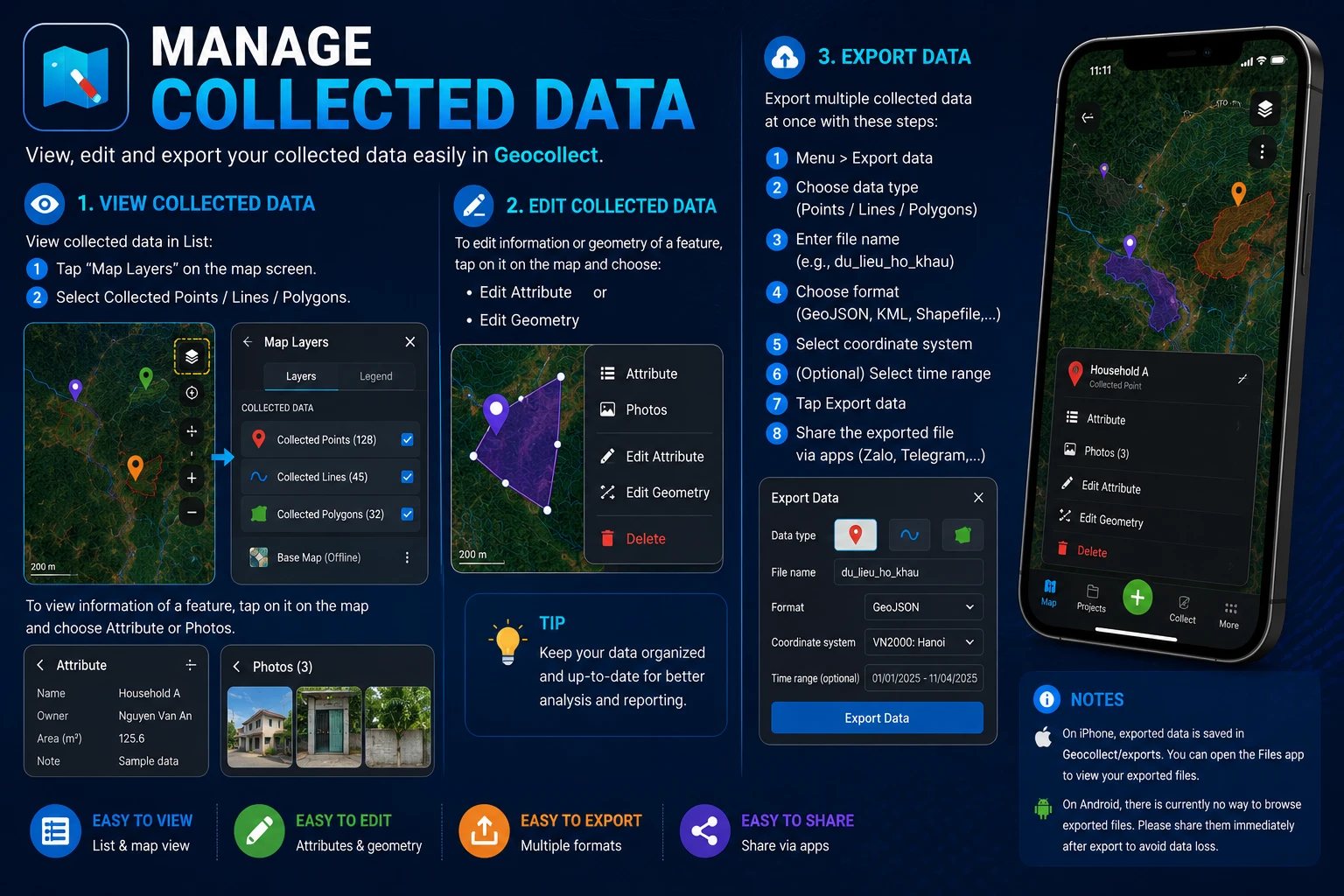
Export Multiple Data at Once
To export multiple collected data at once, follow these steps:
- Step 1: Select Menu > Export Data
- Step 2: Select data type to export: Points, lines, polygons
- Step 3: Enter file name to export: E.g.:
household_data, the exported file will be namedhousehold_data.zip. - Step 4: Select format to export: GeoJSON, KML, Mapinfo, Shapefile, MBTiles, GPX, Excel.
- Step 5: Select projection to export.
- Step 6: Select time range of data to export (Optional)
- Step 7: Click Export Data button.
- Step 8: Share exported data: Via Zalo, Telegram,…

Export a Specific Data
To export a specific collected data:
- View in List format
- Select the … (3 dots) button next to the data
- Select Export and Share
Notes
- On iPhone, exported data is located in the
Geocollect/exportsfolder, you can go to the Files app to review exported files. - On Android, there is currently no way to review exported files, need to share immediately after export to avoid loss.