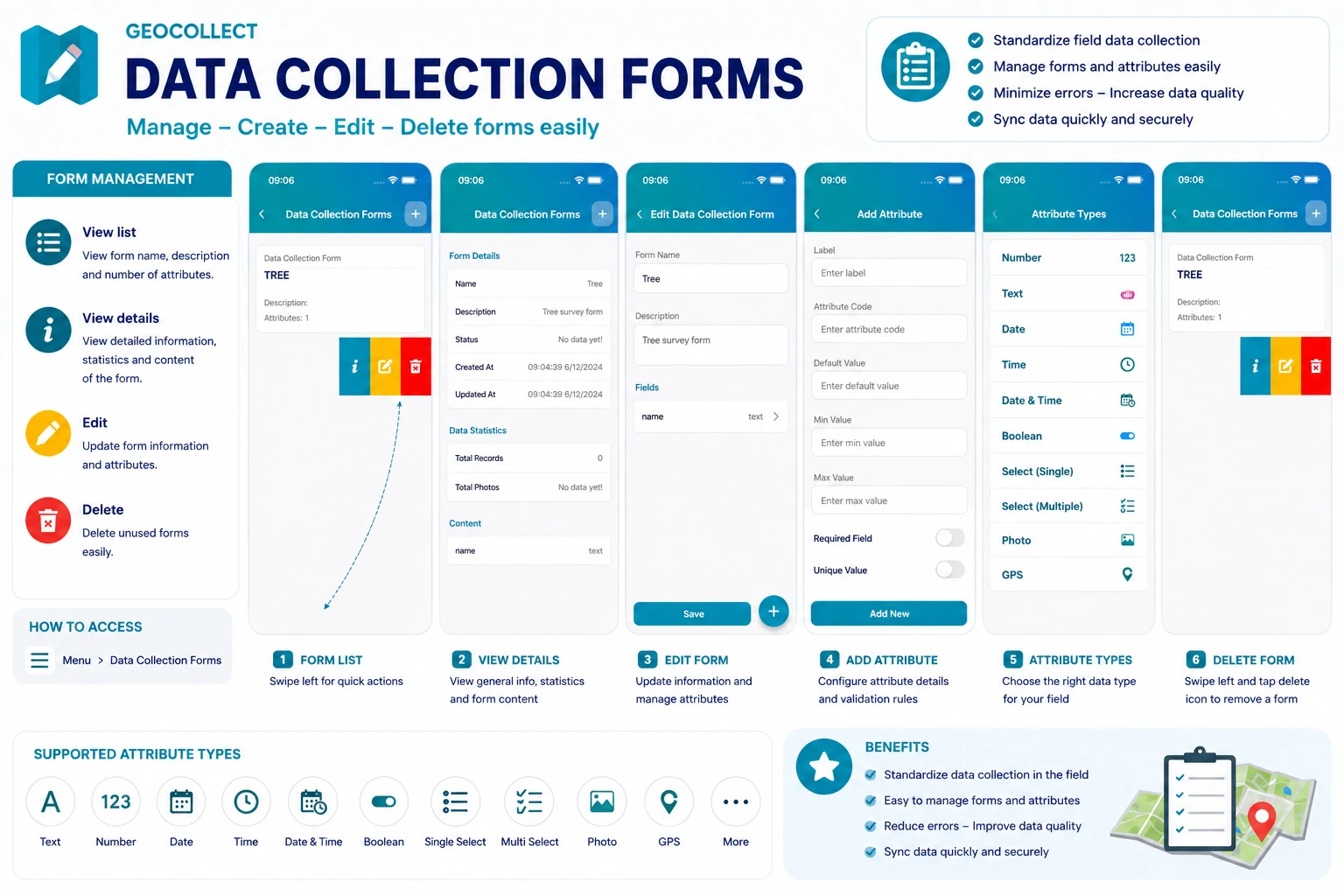
The Collect Form screen helps users manage forms used for entering field survey data. From this screen, users can quickly create, edit, view details, and delete data collection forms.
Collection forms are commonly used to store survey information such as crops, forest status, structures, inspection points, GPS data, etc.
Accessing the collect form screen
From the main application screen:
Menu → Collect forms
After opening, the application will display a list of forms currently available on the device.
Form list
On the list screen, each form will display:
- Form name
- Description
- Number of attributes
Users can:
- Tap a form to view details
- Swipe left to quickly open management functions
Quick action buttons include:
- View form details
- Edit form
- Delete form
Viewing form details
When opening form details, the application displays:
General Information
- Form name
- Description
- Status
- Creation time
- Update time
Data Statistics
- Total collected data records
- Number of related images
Form Content
A list of existing data fields/attributes within the form.
Examples:
- name
- text
- number
- date
- image
- checkbox …
Creating a new collect form
To create a new form:
Step 1
Tap the ”+” button in the top right corner of the screen.
Step 2
Enter the form information:
- Form name
- Description
Step 3
Add data attributes to the form.
Adding attributes to a form
Each form can contain various attributes for data entry purposes.
When adding a new attribute, users can configure:
- Display label
- Attribute code
- Default value
- Minimum value
- Maximum value
There are also additional options:
Cannot be empty (Required)
Forces the user to enter data before saving.
Always unique
Prevents duplicate data entry.
Once finished, tap “Add new” to save the attribute.
Editing a form
Users can update:
- Form name
- Description
- List of attributes
- Input rules
After making edits, tap Save to update the changes.
Deleting a form
To delete a form:
- Swipe left on the form to be deleted
- Tap the red trash bin icon
Note:
- Deleting a form can affect related survey data
- It is recommended to back up data before performing this action
Practical Applications
Collect forms help standardize field survey processes across many domains:
- Forest inventory
- Land use status investigation
- Crop surveying
- Infrastructure management
- GPS data collection
- Environmental investigation
- Field asset management
Using forms ensures data is entered consistently, minimizes errors, and facilitates easy synchronization to the server for centralized management.