Sentinel 2 Satellite Imagery
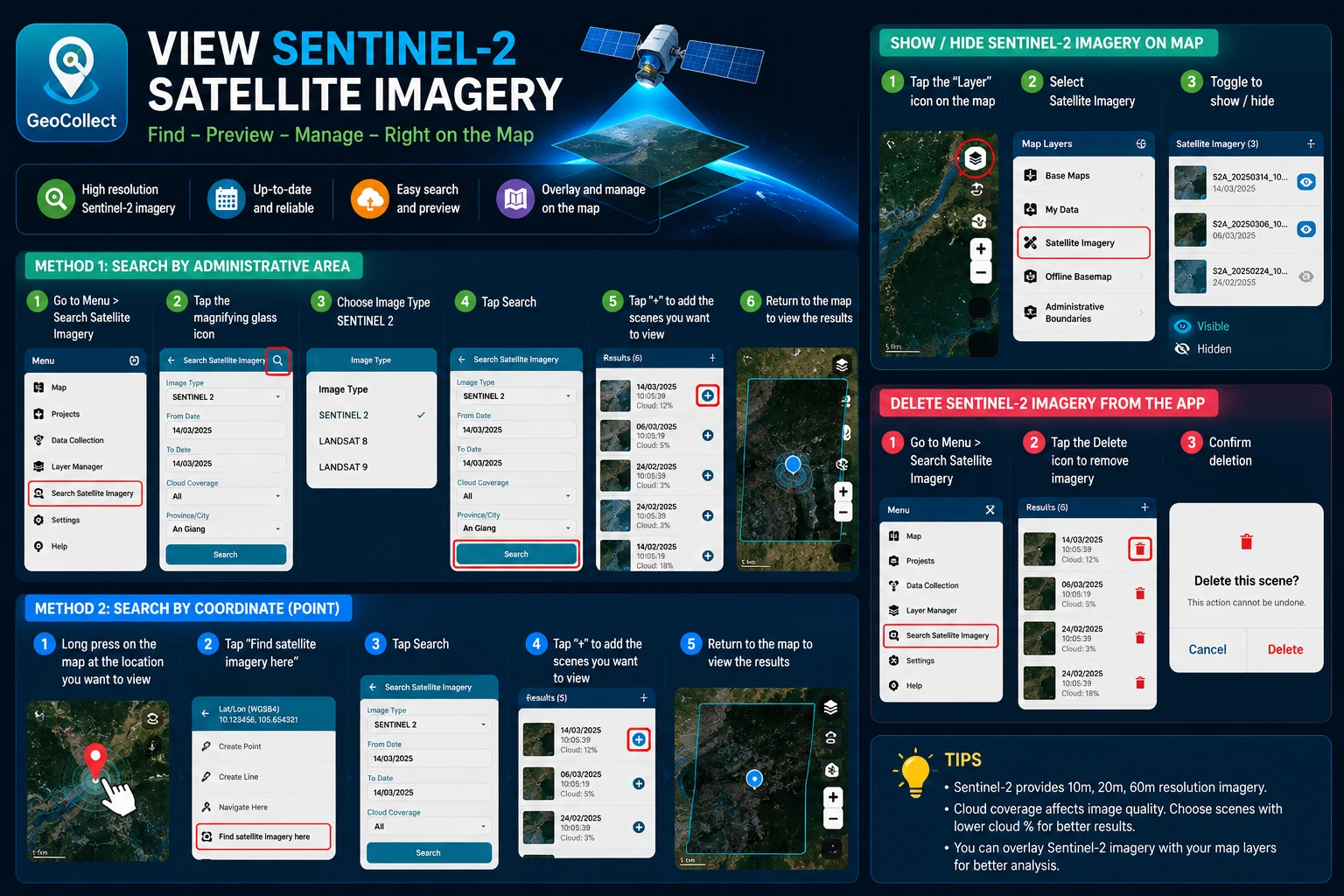
Search for Sentinel 2 Satellite Imagery
There are 2 ways to search for Sentinel 2 satellite imagery.
Method 1: Search by administrative unit
- Step 1: Go to Menu > Satellite Imagery Search.
- Step 2: Select the “Magnifying glass” icon

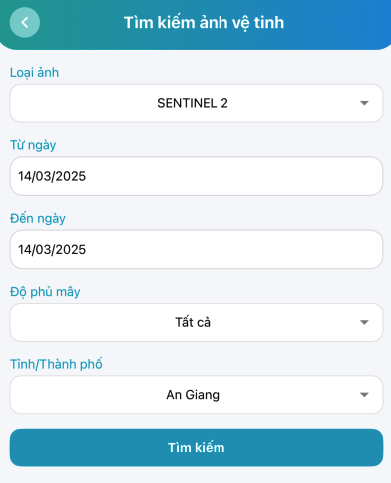
- Step 3: Select Image Type SENTINEL 2.
- Step 4: Click the Search button.
- Step 5: After getting results, click the ”+” sign on the scenes you want to view.
- Step 6: Return to the map screen to view the results.
Method 2: Search by coordinate point
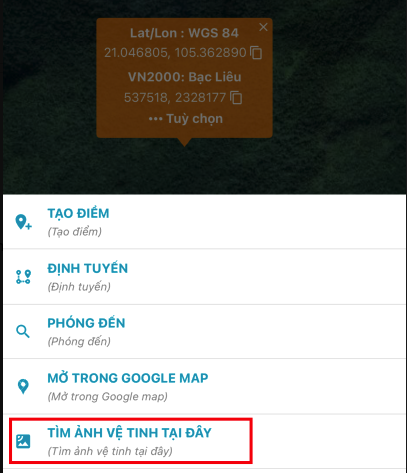
- Step 1: Long press on a point on the map (Where you want to view satellite imagery)
- Step 2: Select “Find satellite imagery here”
- Step 3: Click Search
- Step 4: After getting results, click the ”+” sign on the scenes you want to view.
- Step 5: Return to the map screen to view the results.
Show/Hide Sentinel 2 Satellite Imagery on Map
- Step 1: On the map screen, select the “Map Layers” icon at the top right corner.
- Step 2: Select Satellite Imagery
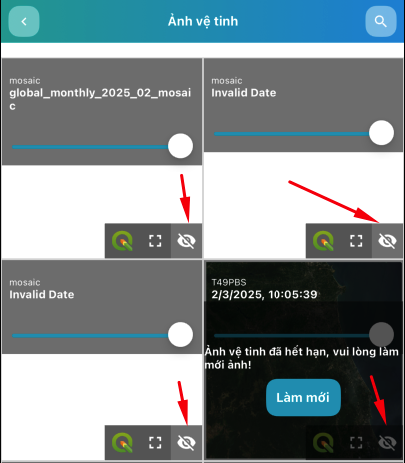
- Step 3: In the satellite imagery list, you can Show/Hide satellite imagery
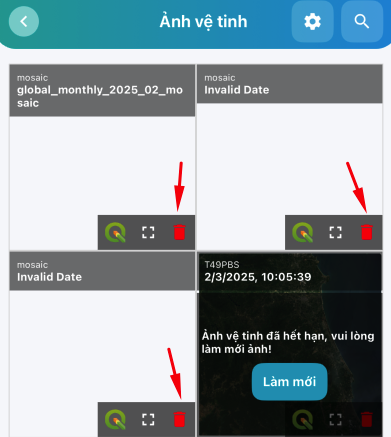
Delete Sentinel 2 Satellite Imagery from the App
- Step 1: Go to Menu > Satellite Imagery Search
- Step 2: In the satellite imagery list, you can Delete satellite imagery