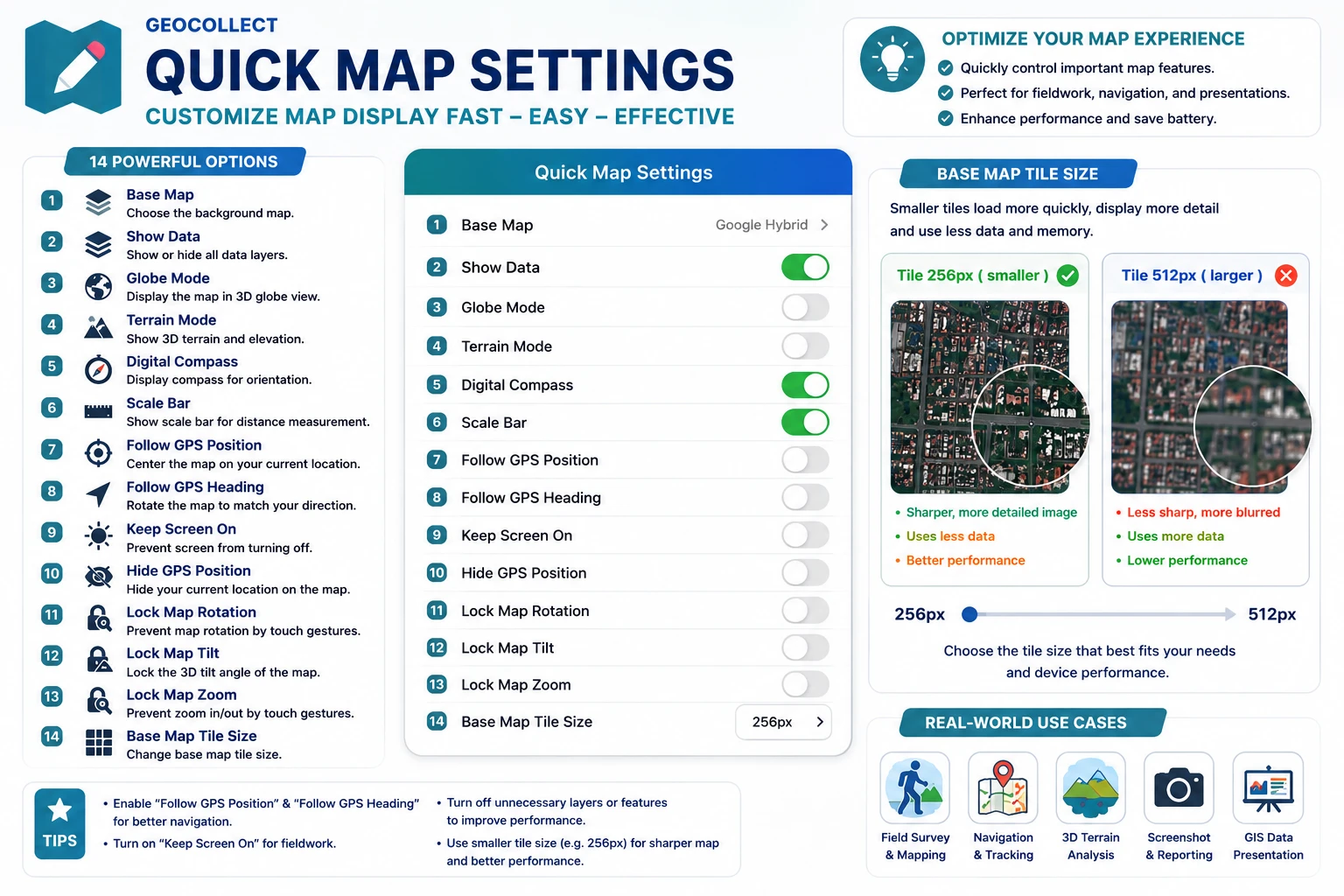
Quick Map Settings
The Quick Map Settings panel helps users quickly toggle display functions and map controls on the main screen without going into advanced settings. This is one of the important control panels that optimizes the experience when working in the field.
Users can open this panel by tapping the Quick map settings icon on the map screen.
Functions in Quick Settings Panel
1. Basemap
Allows changing the type of basemap currently in use, for example:
- Google Hybrid
- Google Satellite
- OpenStreetMap
- Terrain map
- Dark/Light map
Depending on the observation needs, users can choose the appropriate basemap type.
2. Show Data
Turn all data currently displayed on the map on or off.
- When ON: GIS data layers will be displayed.
- When OFF: only the basemap remains.
This feature is useful when you need to quickly observe satellite imagery or reduce display load.
3. Globe Mode
Displays the map as a 3D globe instead of the traditional flat view.
When enabled:
- Users can rotate to view the entire earth.
- Suitable for observing wide areas.
4. Terrain Mode
Displays 3D terrain and elevation of the area.
When enabled:
- You can observe mountains, hills, and valleys more visually.
- Well supports forestry, terrain, or planning surveys.
For better results, users should swipe two fingers on the screen to change the map tilt angle.
5. Digital Compass
Displays a compass on the map screen.
The compass helps:
- Determine North-South-East-West directions.
- Support orientation when moving in the field.
6. Scale Bar
Displays a distance scale bar on the map.
Users can quickly estimate:
- Distance between locations.
- Size of the area being observed.
7. GPS Location Tracking
When enabled, the map will automatically move to the current GPS location of the device.
This feature is very useful when:
- Moving in the field.
- Navigating to survey locations.
8. GPS Heading Tracking
The map will automatically rotate according to the user’s direction of movement.
Helps:
- More visual observation while moving.
- Support navigation in the field.
9. Keep Screen On
Prevents the phone from automatically turning off the screen when using the app.
Very useful when:
- Surveying in the field.
- Continuous navigation.
- Tracking GPS location for extended periods.
10. Hide GPS Location
Hides the current user’s location icon on the map.
This option is commonly used when:
- Taking screenshots of the map.
- Presenting data.
- Reducing interface clutter.
11. Lock Map Rotation
Prevents users from rotating the map through touch gestures.
Helps fix the map display orientation during use.
12. Lock Map View Angle
Locks the tilt angle of the map.
When enabled:
- Users cannot change the 3D viewing angle.
- The map always stays in a stable state.
13. Lock Map Zoom
Prevents zoom operations through touch.
Suitable when:
- Presenting data.
- Avoiding accidental operations when working in the field.
14. Basemap Tile Size
Allows changing the size of tiles downloaded from the map server.
Examples:
- 256px
- 512px
Smaller tiles can:
- Display more sharply.
- But consume more network data and RAM.
When to Use Quick Settings Panel?
Quick settings panel is particularly useful in cases:
- Field surveying
- GPS tracking in the field
- Observing 3D terrain
- Checking GIS data
- Navigation
- Taking map screenshots
- Optimizing device performance
Tips for Effective Use
- Turn off unnecessary layers to make the map run smoother.
- Enable “Keep Screen On” when working in the field.
- Combine “GPS Tracking” and “GPS Heading Tracking” for more visual navigation.
- Use “Terrain Mode” when surveying hilly areas.
- Lock map rotation when you need precise operations on GIS data.