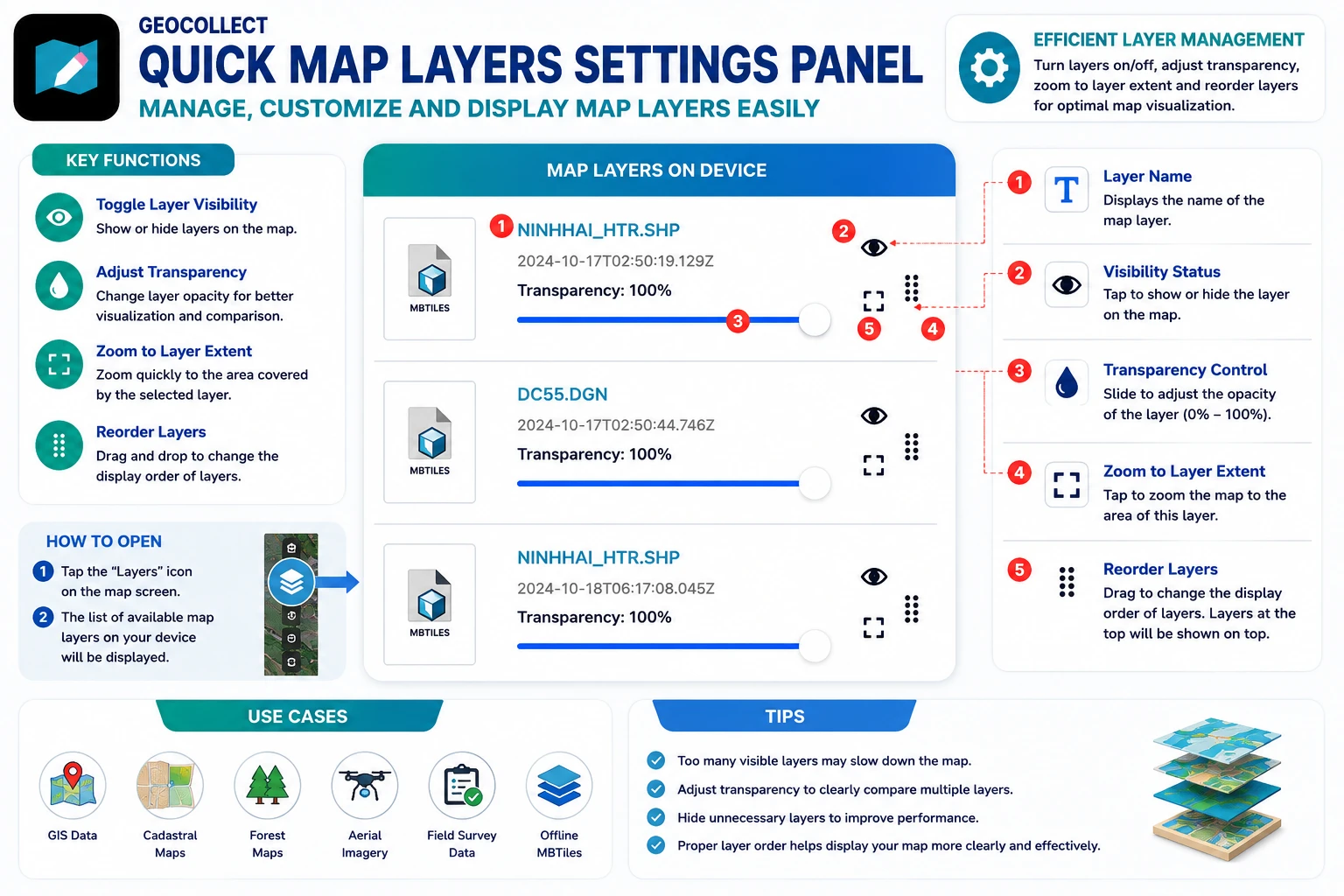
4. Quick Map Layer Settings Panel
The quick map layer settings panel helps users manage all map data layers currently on their phone quickly and intuitively.
Here, users can:
- Toggle map layer visibility
- Adjust layer transparency
- Zoom to layer extent
- Arrange map layer display order
Open Map Layer Settings Panel
From the main map screen, tap on:
Map layers
Then the list of data layers on the device will be displayed.
Examples:
- MBTiles
- SHP
- DGN
- GeoJSON
- Survey data layers
- Other GIS data layers
Components on Each Data Layer
Each data layer in the list displays the following information and controls:
1. Data Layer Name
Displays the name of the map layer on the device.
Examples:
- NINHHAI_HTR.SHP
- DC55.DGN
2. Map Layer Visibility Status
The eye icon is used to:
- Show map layer
- Hide map layer
When hidden, data will no longer appear on the map but is still stored on the device.
3. Transparency Adjustment
The “Transparency” slider allows adjusting the display level of the data layer.
Users can:
- Make the data layer clearer
- Fade the data layer to better observe the basemap underneath
This feature is very useful when overlaying multiple GIS data layers.
4. Zoom to Data Layer
The expand icon is used to:
Quick zoom to the extent of the data layer
After clicking, the map will automatically move to the location with that layer’s data.
5. Arrange Map Layer Order
The drag handle on the right allows:
- Change the display order of data layers
- Bring important layers to the top
- Move background layers to the bottom
Display order directly affects which layer will be prioritized on the map.
Practical Applications
The map layer management panel is particularly useful when working with:
- GIS data
- Cadastral data
- Forest status maps
- Flycam maps
- Field survey data
- Offline MBTiles maps
Notes
- If too many data layers are displayed simultaneously, the map may load slower.
- Adjust transparency appropriately to easily observe data.
- Temporarily disable unnecessary layers to improve display performance.
- Arranging data layers in the correct order helps display the map more clearly and intuitively.